Task Management: The Complete Guide to Assigning & Tracking Tasks
No more sticky notes on the fridge or forgotten WhatsApp messages. AuPairSync's task system lets you create clear, assignable tasks with due dates, descriptions, and built-in chat — so everyone knows what needs to be done, by whom, and by when.
Why a Shared Task List Matters
When daily responsibilities live in different places — a text here, a verbal reminder there — things get missed. With AuPairSync's task management, you can:
- Create tasks with clear descriptions and due dates
- Assign them to specific family members or your au pair
- Set up recurring tasks for daily and weekly routines
- Discuss task details directly within each task's built-in chat
- See everything organized by timeline — today, tomorrow, this week
What You'll Learn
In this guide, you'll discover how to:
- Navigate the task overview and find tasks quickly
- Create a new task with all the details
- Use quick templates to save time
- Set up recurring tasks for routines
- View task details and communicate via built-in chat
- Complete tasks and keep your list clean
Step 1: Navigate to the Task List
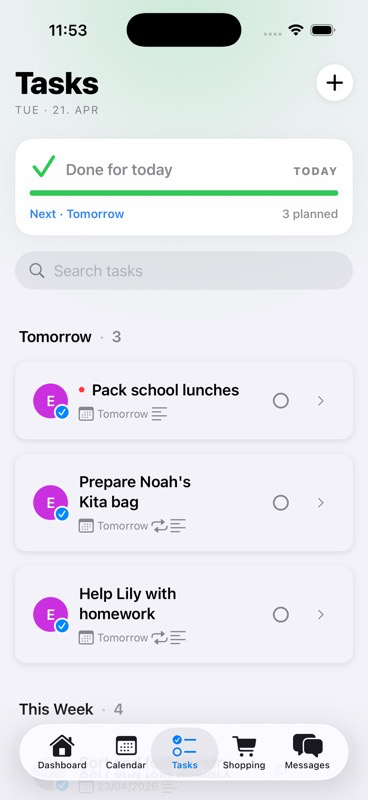
Open AuPairSync and tap the Tasks tab in the bottom navigation bar. You'll see your task overview screen with:
- A search bar at the top to quickly find tasks by name
- Time-based sections — tasks are automatically grouped into Today, Tomorrow, and This Week
- Task cards showing the title, who it's assigned to, and when it's due
- A + button in the top-right corner to create new tasks
Each task card displays key information at a glance:
- Task title with a checkbox icon
- Assignee badge — a purple tag showing who's responsible (e.g., "Emma Lindstrom" or "Any Au Pair")
- Due date — when it needs to be done
- Recurring icon — if the task repeats automatically
Tip: Tasks assigned to "Any Au Pair" appear with a group icon, meaning any au pair in the family can pick them up.
Step 2: Create a New Task
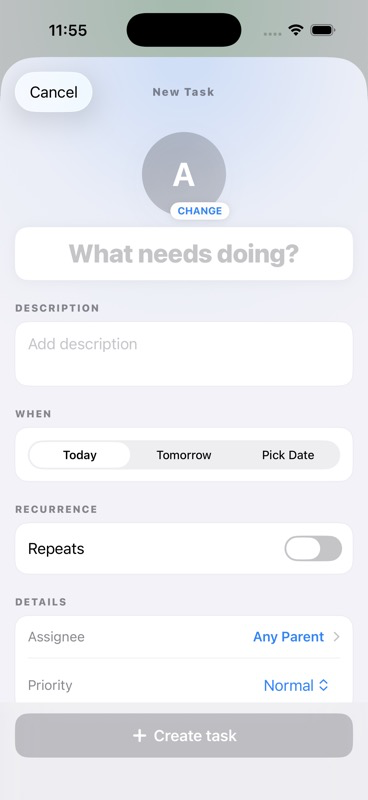
Tap the + button in the top-right corner to open the task creation form. Here's what you can set:
Task Title
Enter a clear, descriptive title in the "What needs to be done?" field. Be specific — "Pack school lunches" is better than "Lunch."
Quick Templates
Below the title field, you'll see Quick Templates — pre-built task suggestions you can tap to auto-fill the title:
- Clean kitchen
- Vacuum living areas
- Laundry
Tap any template to instantly populate the title, then adjust as needed.
Due Date
Choose when the task needs to be done:
- Today — due today (selected by default)
- Tomorrow — due tomorrow
- Pick Date — choose any specific date from the calendar
Assign To
Select who should complete the task. You'll see all family members listed with their role:
- Family members show a PARENT badge (blue)
- Au pairs show an AU PAIR badge (pink)
Tap the circle next to a person's name to assign the task to them. The assignee will receive a push notification.
Description (Optional)
Add details, instructions, or important notes in the description field. This is especially helpful for tasks that need context:
- Allergy reminders for meal prep
- Specific instructions for errands
- Location details or preferences
Create Task
Once everything looks good, tap Create Task to add it to the list. It'll immediately appear in the right time section and be visible to the assigned person.
Step 3: Set Up Recurring Tasks
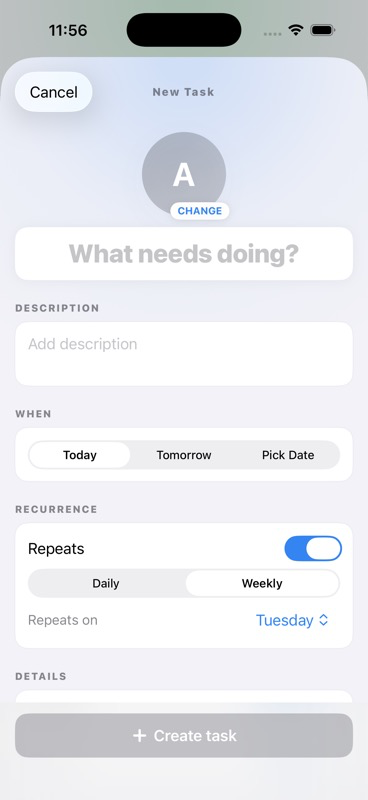
For tasks that repeat on a regular schedule — like cleaning, school prep, or laundry — toggle Make this recurring to set up automatic repetition.
When you enable the toggle, two options appear:
Frequency
- Daily — the task repeats every day
- Weekly — the task repeats on a specific day each week
Repeats On (Weekly)
If you choose Weekly, tap the Repeats on picker to select which day of the week the task should recur. For example, "Clean kitchen" every Thursday.
Key takeaway: Recurring tasks are perfect for household routines. Set them up once and they'll automatically appear on the right day — no need to recreate them each week.
Great recurring task ideas:
- Daily: Pack school lunches, tidy playroom, check homework
- Weekly: Vacuum living areas, sort laundry, clean bathrooms, return library books
Step 4: View Task Details & Chat
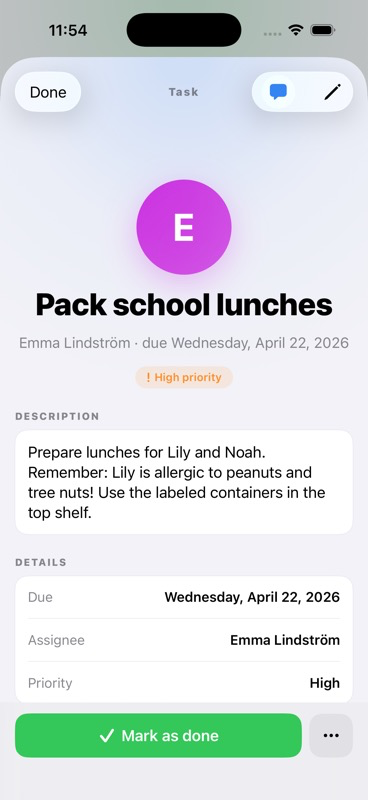
Tap the > arrow on any task card to expand its details. The expanded view shows:
Task Information
- Title and assignee at the top
- Due date below the assignee badge
- Description — the full instructions or notes you added when creating the task
Edit Button
Tap the blue Edit button to modify any task details — change the title, update the description, reassign it, or adjust the due date.
Built-in Chat
Every task has its own contextual chat built right in. Tap Show Chat to open a conversation thread attached to that specific task. This is perfect for:
- Asking a quick question about the task ("Which containers should I use?")
- Sharing updates ("Done with the lunches, used the blue containers!")
- Clarifying details without switching to a separate messaging app
The chat keeps all task-related communication in one place — no more scrolling through WhatsApp looking for that one message about school lunches.
Step 5: Complete a Task
When a task is done, tap the circle checkbox on the left side of the task card. The task is marked as complete and disappears from your active list — keeping everything clean and focused on what still needs to be done.
Tip: Completed tasks don't clutter your view. The task list always shows only what's pending, so you can focus on what's ahead.
Tips for Getting the Most Out of Tasks
For Host Families
- Be specific in descriptions — "Prepare lunches for Lily and Noah. Remember: Lily is allergic to peanuts!" is much better than "Make lunch"
- Use recurring tasks for daily routines so your au pair always knows what's expected
- Assign early — create tomorrow's tasks the evening before so your au pair can plan ahead
- Use the chat instead of switching to WhatsApp — it keeps context together
For Au Pairs
- Check your task list at the start of each day to see what's planned
- Use the search bar to quickly find a specific task
- Ask questions in the task chat if anything is unclear — it's faster than guessing
- Tap the checkbox as soon as you finish a task to keep the list up to date
Troubleshooting
"I don't see any tasks"
- Make sure you're looking at the right time frame — tasks are grouped by Today, Tomorrow, and This Week
- Ask your host family if tasks have been assigned to you specifically or to "Any Au Pair"
"I can't create tasks"
- Both parents and au pairs can create tasks in AuPairSync
- If you're having trouble, ensure you're on the latest version of the app
"Recurring tasks aren't appearing"
- Check that the recurring toggle is enabled and the correct day is selected
- Recurring tasks generate on the scheduled day — they won't all appear in advance
Related Guides
- Shopping Lists: The Complete Guide — manage grocery lists and expenses
- How to Set Up Your Family Dashboard — your family command center
- Coordinating Schedules with Shared Calendar — plan events and activities
Ready to get organized? Download AuPairSync and start managing tasks with clarity.
Questions? Contact us at support@aupairsync.com
Ready to simplify your au pair life?
Tasks, calendar, messaging and more — all in one app.

Related Articles

How to Set Up Your Family Dashboard
Complete walkthrough for setting up and customizing your AuPairSync family dashboard. Learn how to configure widgets, organize information, and create your family's command center.
6 min read

Coordinating Schedules with the Shared Calendar
Master family schedule coordination using AuPairSync's shared calendar. Learn best practices for managing events, avoiding conflicts, and keeping everyone in sync.
6 min read

Shopping Lists: The Complete Guide to Shared Grocery Shopping
Learn how to create, share, and manage shopping lists in AuPairSync. Step-by-step guide covering list creation, smart suggestions, real-time check-off, expense claims, and more.
8 min read